STAR Dashboard
Learn more about the The STAR Dashboard, which UC San Diego Foundation staff with secure access to private support fund data.
The STAR Dashboard (Stewardship, Transparency, Accountability, Reporting) is an online reporting tool powered by Cognos that provides UC San Diego and UC San Diego Foundation staff with secure access to private support fund data. STAR offers transparent, self-service reporting for endowment and current-use gift funds, including balances, payout, and fund documentation. Access requires an appropriate AD role and authorization through AccessLink.
Login Instructions
- Who has access?
- Business Officers
- Principal Investigators
- Advancement
- FinancialLink users
- The user will need to be associated with at least one of the AD Roles noted below:
- Roles_ExtAff_Gift_Fund_Reporting (Advancement)
- Roles_FinancialLink (non-Advancement)
- Roles_ExtAff_Restricted (Affiliates authorized by Advancement Services)
- Advancement
- Your DSA grants access to 'UNIVERSITY ADVANCEMENT: WWW - GIFT FUND REPORTING' found under the 'Facility' tab in AccessLink.
- Non-Advancement
- Your DSA grants access to 'FINANCIAL: WWW - FinancialLink' found under the 'Facility' tab in AccessLink.
- Use your AD network login credentials when prompted.
- When you login, you will be directed towards the following page:

If you are unable to gain access but were granted the appropriate access by your DSA, please submit a case to Access and Identity Management to take a look at the AD roles provisioned in your AD account. In your case, please include the AD Role your account should be associated with.
Training
Frequently Asked Questions
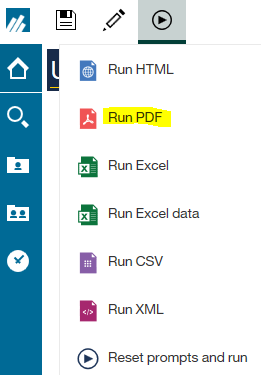
I’m trying to print the dashboard or reports in STAR; what is the best way to do this?
To print in STAR, click the “Run” icon, located at the top left of the page, and select “Run PDF.” This will convert the page to a PDF for you to save or print. Saving as a PDF ensures proper formatting.
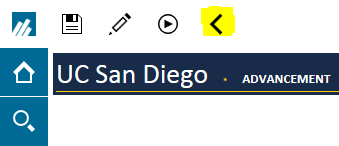
When I’m navigating to previous pages in STAR I get an error or the page appears blank; how do I avoid this?
To prevent timeout issues from clicking your browser’s back button, click the “Back” icon, located at the top left of the page.
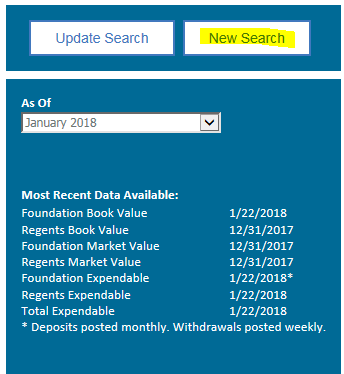
I would like to perform a new search, how do I go back to the initial landing page?
To search for a new fund(s), click the “New Search” button, located inside the right blue sidebar.
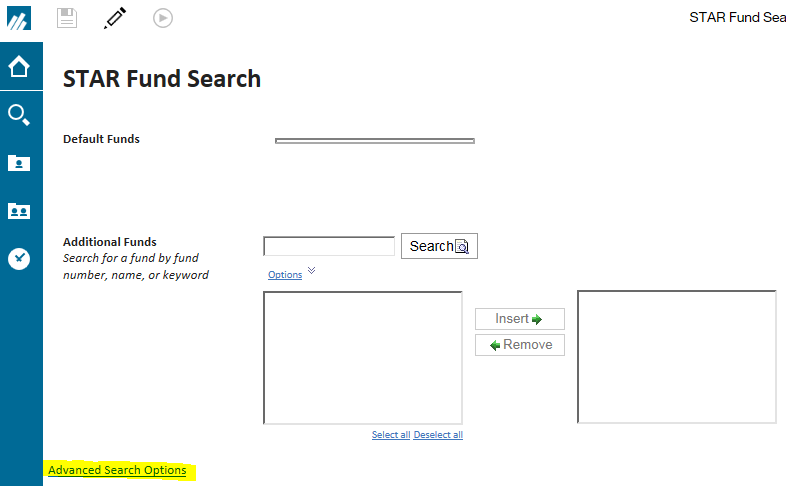
How do I retrieve my area’s funds without typing every fund in the search box?
Click the “Advanced Search Options” link to expand various options to search. After selecting your options, click the “Filter” button at the bottom of the page.
How do I find balances for a specific month?
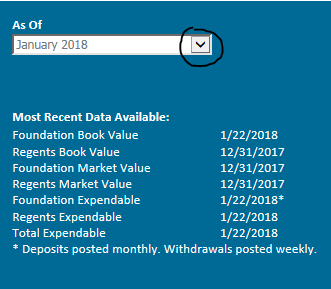
Inside the right blue sidebar of the page, click the drop-down icon to select a month. Please note the dates of when the most recent data is available.
Example: Market Value = No Data Available
Most recent available market value is 12/31/2017 but the report lists January 2018 balances. Select December 2017 from the drop-down to view the latest market value.
How do I export all data available for a fund in Excel?
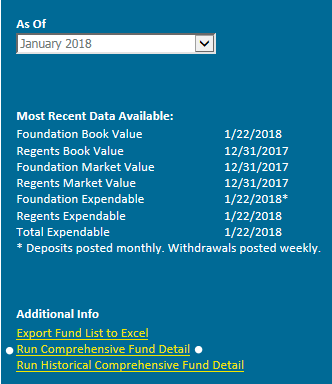
Inside the right blue sidebar of the page, click the “Run Comprehensive Fund Detail” link under “Additional Info.” Please note the date selected for balances. If the report does not load correctly, please try again using Internet Explorer as your browser. Internet Explorer is the preferred browser as it is the only browser IBM offers full support for.
Where do I find gift documents?
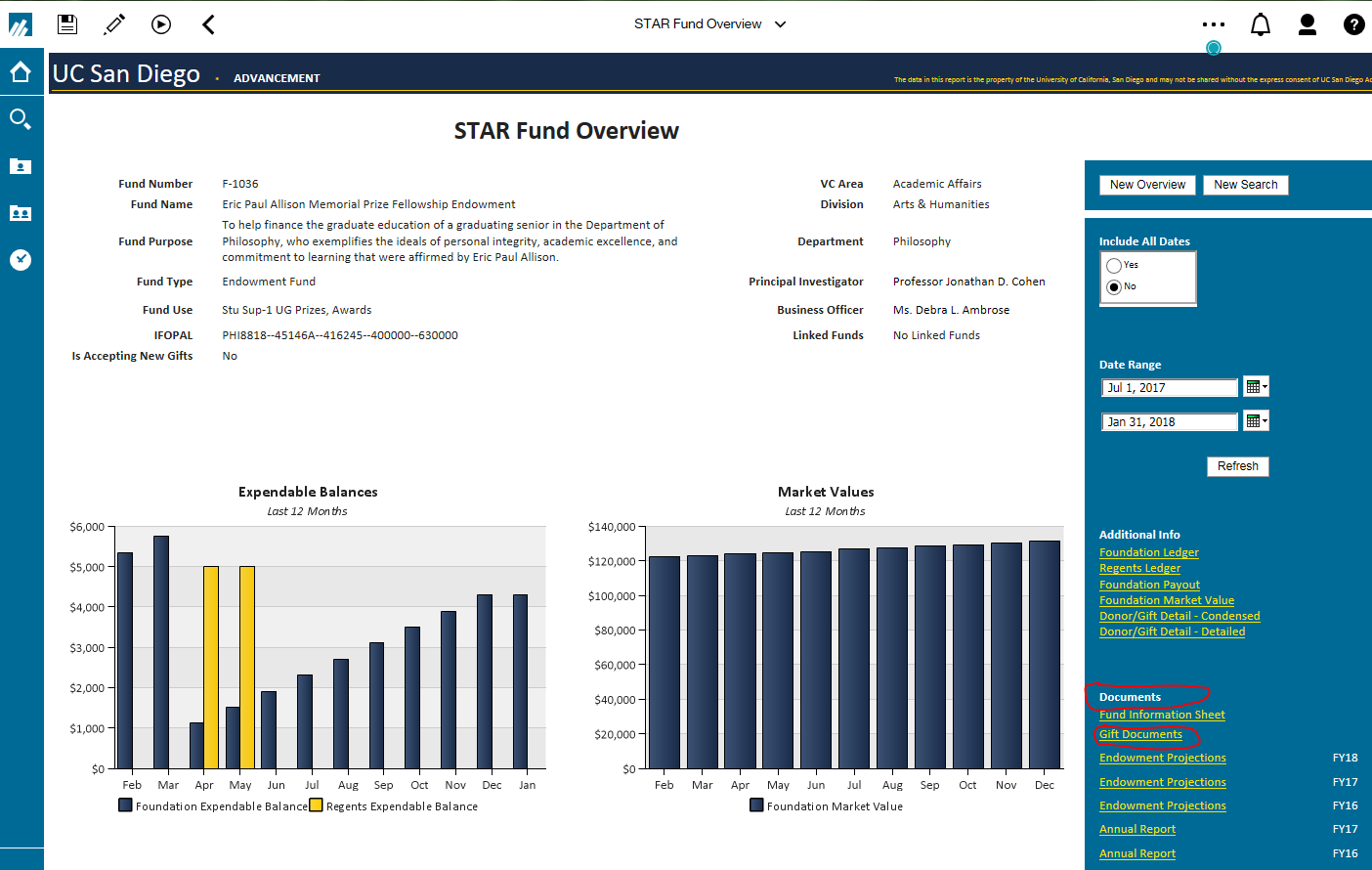
When you click on a fund to retrieve further detail, gift documents are found in the bottom right of the blue sidebar under “Documents.”
Please note, only endowment documents are currently uploaded.
When are gifts reflected in the balance?
Gifts are reflected in the balance the following month they are received.
Are liens included in the Regents Expendable?
Yes. If you would like to see the Regents Expendable before liens, please refer to the Comprehensive Fund Detail report.
What does the Estimated Annual Payout field represent in the Comprehensive Fund Detail Report?
The Estimated Annual Payout column in STAR is a calculation where it takes the sum of the payout allocated for the fiscal year and the most recent month’s payout multiplied by the months remaining from the date listed. In order for the calculation to function correctly, must choose a closed month from the drop down list. Please verify if a month is closed according to most recent data available for Foundation Market Value.
Why are there two fund numbers and what do the first two columns on the dashboard represent?
During design of the new chart of accounts, Foundation endowments were split into two funds: the principal (also known as book value or corpus) fund and the expendable fund. In order to keep the two funds connected, the last 4 digits are the same but with a different prefix indicating the fund type. The main fund number in STAR (first column of dashboard) represents the principal fund for endowments. Most Foundation endowments will start with a K for the principal and the expendable will start with an F. Other letters are involved depending on the type of endowment. An example would be K4432 is the principal fund and exists on the Foundation ledger while F4432 represents the expendable fund and exists on the Campus ledger.
Updates
If you're having trouble accessing STAR, please refer to your DSA for assistance.
View the STAR Troubleshooting Guide.