RCAM BAM Reconciliation Report
The RCAM BAM Reconciliation Report enables users to reconcile commitments entered in the Resource Commitment Allocation Module (RCAM) against transactions entered in the Budget Adjustment Module (BAM) within UCSDPLAN.
The RCAM BAM Reconciliation Report is available from the Business Analytics Hub (bah.ucsd.edu) under the Budget Adjustment Module (BAM) Dashboard or Resource Commitment Allocation Module (RCAM) Dashboard. Access is currently limited to the Campus Budget Office and authorized RCAM users. Standard Cognos Report Consumer roles are required to access. For more access information click here.
Business Scenarios
The report is divided into two primary components:
- RCAM BAM Condensed, the default landing view after prompt selection. Designed for high-level reconciliation, it enables users to quickly identify discrepancies such as total amount variances, mismatches between RCAM entry and BAM transaction data, and RCAM entries without corresponding BAM transactions.
- RCAM BAM Details, an expanded view for deeper analysis. This view includes additional BAM columns (e.g., Budget Adjustment Description, Budget Adjustment Created By, Budget Adjustment Record Scenario Type, F-P-F-F-A) to support investigation of amount variances and data mismatches.
Together, these views support the reconciliation of RCAM commitments to BAM transactions and facilitate the resolution of any discrepancies.
This report answers the following questions:
- Have all RCAM entries been entered as Budget Adjustment Module (BAM) transactions?
- What are the Source and Destination chartstring details for resource commitments my unit has made (Financial Unit, Project, Fund, Function, Account)?
- Which of my RCAM entries do not have matching BAM transactions (missing BAM transaction, amount variance, name mismatch)?
- Are there reversals associated with a specific commitment(s)?
Critical Concepts
- The RCAM BAM Reconciliation Report displays “Pushed” “Recurring” resource commitment records and the associated Budget Adjustment Module data.
- Data availability is governed by row-level security. Users will only see Financial Units for which they have approved access.
- If you only see one side of a resource commitment record (either Source or Destination), it may be due to row-level security. If the corresponding Financial Unit is outside your access, the other side of the resource commitment record will not appear in the report.
- The report allows the user to search for records by CTID and Commitment Name.
- Partial values are accepted in search fields.
- Search fields are not case-sensitive.
- The report displays current values tied to a record, as processed in RCAM/BAM by the prior business day.
- The report does not provide real-time data, but any changes processed in RCAM/BAM should be reflected by the following business day.
- Prior year data is available in the reports, though only currently stored values are reflected (i.e., no audit trail capability).
- Prompt selections entered by the user can be viewed on the ‘Parameters’ tab. Prompt selections entered by the user apply to both the ‘RCAM BAM Condensed’ tab and ‘RCAM BAM Details’ tab.
- The ‘Variance Description’ column returns the following values:
- MATCH, exact match between RCAM Total Amount and Budget Adjustment Amount, including chartstring alignment
- Mismatch – Amount, mismatch between RCAM Total Amount and Budget Adjustment Amount
- Mismatch – Name, mismatch between RCAM ID/Name and Budget Adjustment Description
- No Matching BAM Transaction, RCAM record exists with no corresponding BAM transaction
- Transactions within an Accounting Period where the General Ledger has not yet closed may display “No Matching BAM Transaction.” Once the GL closes and the transaction posts, this will resolve automatically.
- There is a known data issue in RCAM where some records incorrectly display Pushed Flag = Yes even though no transaction occurred in that period(s). In these cases, both the Resource Commitment Total Amount and the Budget Adjustment Amount will display 0.00, and the Variance Description will display “No Matching BAM Transaction.” This is a system data issue and does not require action from units - this issue is scheduled to be resolved by June 2026.
Data Selection and View Options
Respond to Prompts
Upon launch, the report displays a Prompt page where results can be filtered via one or more optional prompts. If no prompt selections are made, the report will return all records the user has access to based on row-level security assignments.
Fiscal Year - Select the Fiscal Year(s) from the list.

Resource Commitment ID - Wildcard search and partial values accepted.

Resource Commitment Name - Wildcard search and partial values accepted.

Resource Commitment Record Scenario Type - Select the Record Scenario Type from the drop-down.

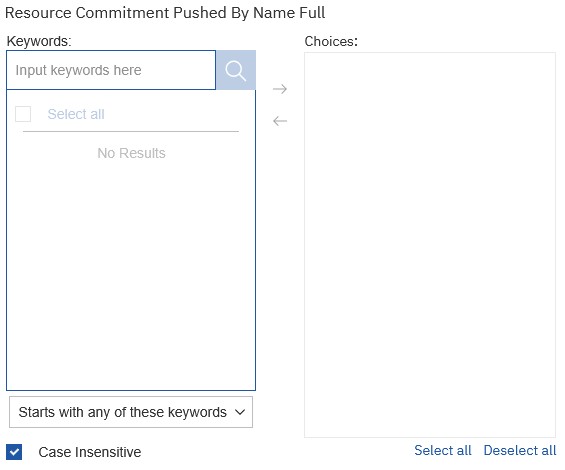
Resource Commitment Pushed By Name Full - Search and select any Pushed By Name from the prompt.
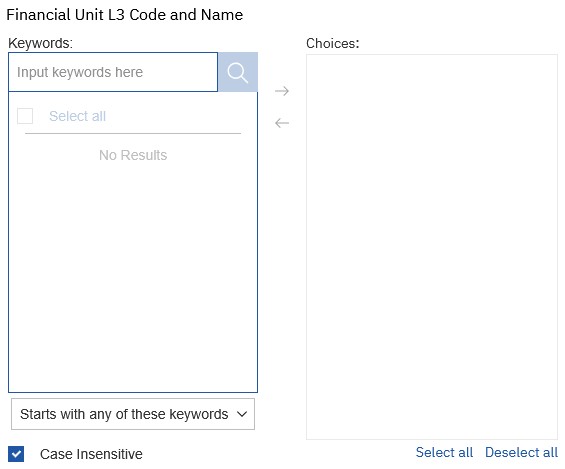
Financial Unit L3 Code and Name - Search and select any Financial Unit L3 from the prompt.
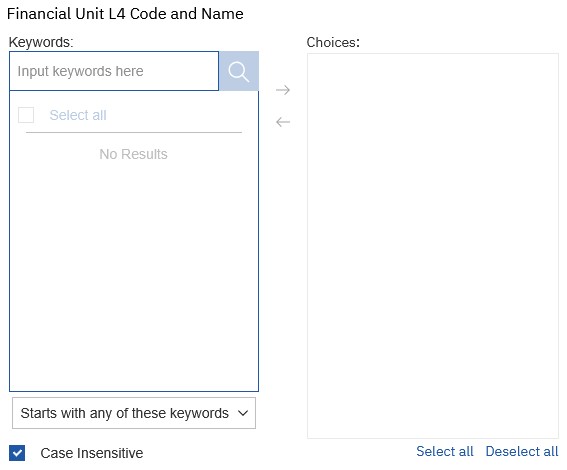
Financial Unit L4 Code and Name - Search and select any Financial Unit L4 from the prompt.
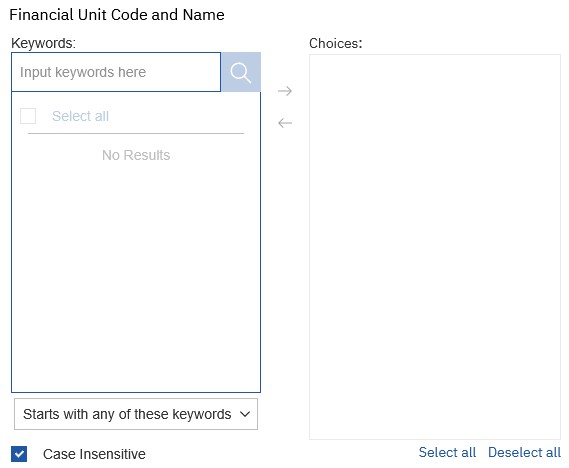
Financial Unit Code and Name - Search and select any Financial Unit from the prompt.
Project Code and Name - Search and select any Project from the prompt.
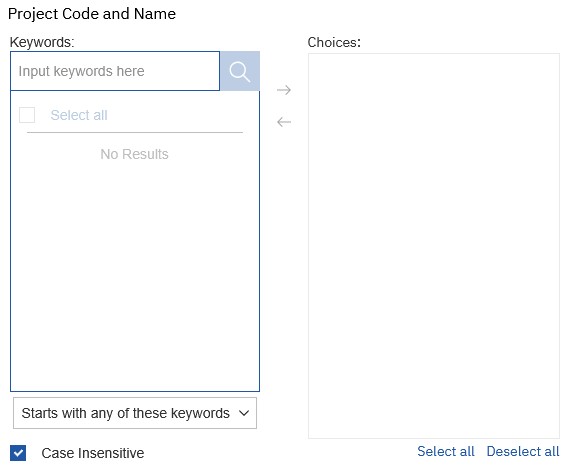
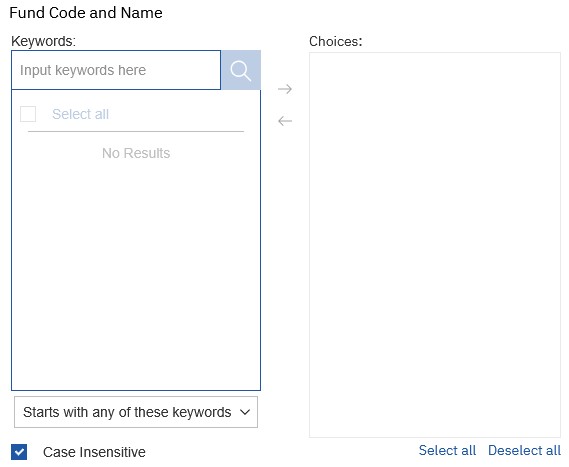
Fund Code and Name - Search and select any Fund from the prompt.
Function Code and Name - Search and select any Function from the prompt.
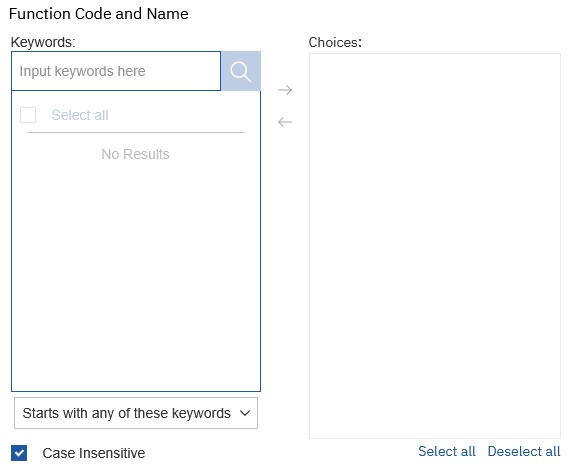
Once all Prompt selections are complete, click Finish to generate the report.
Report Views
RCAM BAM Condensed:

RCAM BAM Details:

To filter by ‘Variance Description’ values, click on any ‘MATCH’ value shown in the column.
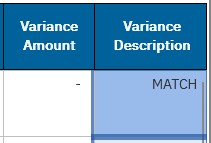
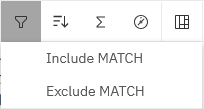
Once the ‘MATCH’ value is selected in dark blue highlight, click on the Filters icon and choose between:
- Include MATCH
- Returns values = MATCH.
- Exclude MATCH
- Returns values = Mismatch – Amount, Mismatch – Name, No Matching BAM Transaction
Refer to the Data Glossary under Get Started on the main BI & Financial Reporting Blink menu for searchable data descriptions and usage rules.