Student Operational Reporting Help
Student Operational Reporting Help provides the following resources and training opportunities for support.
Training
Blink Pages
Browse Blink's Student Operational Reporting pages for guidance on dashboards and reports.
Content includes general pages as well as pages for each individual report and reporting category. To view the report-specific pages, please click on the associated reporting category.
The Get Started page includes access information, a tutorial on How to Run a Report and much more!
Weekly Student Reporting Office Hours
Attend the weekly Student Operational Reporting Support Office Hours.
Weekly: Wednesdays, 11am-noon
Zoom Link: Click the button in the header of student operational reports.

To protect our student information, access to the office hours will require access to the reports. The zoom link is available in the prompt page header of the student operational reports. Users must be logged into Zoom to join.
Business Analytics Hub (BAH)
View answers to your frequently asked questions on the Business Analytics Hub Help page.
Resources
Student BAH Report Field Mapping
To facilitate the switch from old to new terminology the report-specific Blink pages contain a list of field names as they appeared in the old Querylink report and how it is named in the new BAH/Cognos report. It includes a description of any calculations being performed by the report.
Activity Hub Field List With Definitions
The Activity Hub Field List dashboard is available with all Activity Hub fields. While not all definitions are there yet, more and more are being added.
SIS Data Source
A new Display Option has been added called "SIS Data Source". This will allow you to control whether the report will include data from ISIS, from TSS or both.
Learn more about the different options and which are recommended during this transition period on our TSS Transition page.
Connect With Us
Services & Support
Contact us using the "Make a Request" or "Ask Question / Report Issue" buttons on the Student tab of the Business Analytics Hub.
Weekly Student Reporting Office Hours
Join us Wednesday mornings to ask questions or learn some new tips and tricks.
Weekly: Wednesdays, 11am-noon
Zoom Link: Click the button in the header of student operational reports.
To protect our student information, access to the office hours will require access to the reports. The zoom link is available in the prompt page header of the student operational reports. Users must be logged into Zoom to join.
Reporting One-on-One Sessions
Sign up for a Reporting One-on-One Session with a member of the Student Operational Reporting Team who can answer questions about student reporting.
Sign up for a reporting one-on-one session directly on Calendly.
Data Update Schedule
Most Data is Updated Nightly
Student Operational Reports rely on information from the Student Analytics Hub which launched in 2004. The Hubs are updated nightly, so updates made the prior day should be reflected in the reports. To view changes made the same day, please check the source system (ISIS, TSS, CourseLeaf, etc.).
TSS Daily Maintenance Impact on Data Schedule
To ensure peak performance, the Triton Student System (TSS) is undergoing nightly maintenance. Due to the system being unavailable, the TSS data is captured between 9:00pm-10:00pm. This means that changes that happen in TSS between 9:00pm-11:00pm may not get reflected in the Business Analytics Hub reports for one additional business day. This is expected to be temporary. The system maintenance schedule is available on the Systems Status page.
If a change from the prior day is missing, please check the following websites to see if there was a problem with the Network or Data Load that may have impacted the nightly update.
- Systems Status
This website is updated with known issues impacting UCSD systems, data network and more. It is a great resource to check if there is planned or unplanned issues at UCSD. - Activity Hubs MT Status Report
This dashboard shows the date and time of the last success update for each activity hub as well as a color indicating whether or not there were issues with the update.
Frequently Asked Questions (FAQ)
No Data Found
This message is displayed when a report is run with prompt selections (filters) that result in no results. UCSD has been around for many years so sometimes a filter value you select is no longer used resulting in the No Data Found issue.
To fix, simplify the request by removing some of the filters until you get data. This will help you identify which filter is causing you to not get data, then carefully review the options to ensure you are adding a filter that makes sense.
Common Cognos Error Messages
See the Bugs & Outages page maintained by the BI & Financial Reporting Team to view a list of common Cognos errors including:
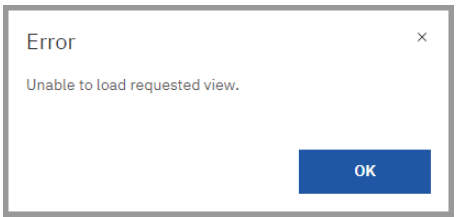
- Unable to load requested view.
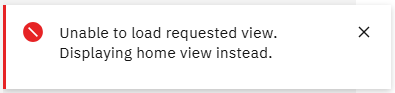
- Unable to load requested view. Displaying home view instead.
- Module metadata request failed.
- The permissions assigned to you may limit report functionality.
Slow Run Times or Out of Memory
If you need to generate a large amount of data, the report may run very slowly or you may get a memory limit error. In either case, it can be helpful to use the “run in background” option. This can be setup from the Search Results, Contents, or Favorites folders within Cognos (not from within the report itself).
Quick reference steps:
- Locate the report in Cognos either via folder navigation or using the search bar at the top
- Open the report action menu using the three dots or right clicking on the report name. Select “Run as”.
- Turn on the “Run in background” option
- Select your preferred output
- In the Delivery section, select “Send report by email”
- Click the “Run” button
- Enter your prompt selections as normal
- Wait to be notified via email that your report is ready.
Reconciliation Challenges
When reconciling against the official Institutional Research reports (or any other report), it's essential to ensure you're comparing like to like. Common errors that create discrepancies include comparing census data with end of term (non-census) data, using different filters, and timing differences.
To ensure accurate reconciliation, verify that you're using the same type of data (census or end of term), applying the same filters, and comparing data from the same time period.
Error: Unable to load requested view
There are two occasions when Cognos will display an error message containing the text "Unable to load requested view." The table below shows examples of these error messages, what they mean and how to resolve them:
| Error | Solution |
|---|---|
|
Browser Caching Error
|
Clear your cache and follow these steps to prevent future such errors. |
|
Access Error
|
This error message indicates that you do not currently have access to the report you're trying to run. Please review the "Access" section on the Get Started page. |