Campus Wireless/Wi-Fi Access information
Find out how to get access to wireless/Wi-Fi network on campus.
Overview
RESNET-PROTECTED and UCSD-PROTECTED
The UC San Diego is covered by two main Wi-Fi networks. Students, staff, and affiliates may connect to either of these using their Active Directory username and password. UCSD-PROTECTED covers the entire campus except for residential buildings. RESNET-PROTECTED covers Undergraduate residence buildings. For more information on RESNET, see resnet.ucsd.edu. See the list of platforms below for detailed instructions on connecting to the network.
Guest Wi-Fi Access
Guests from eduroam-enabled institutions may connect to eduroam on the UC San Diego campus. Otherwise, guests may connect to the UCSD-GUEST Wi-Fi network.
Tips for a strong Wi-Fi connection
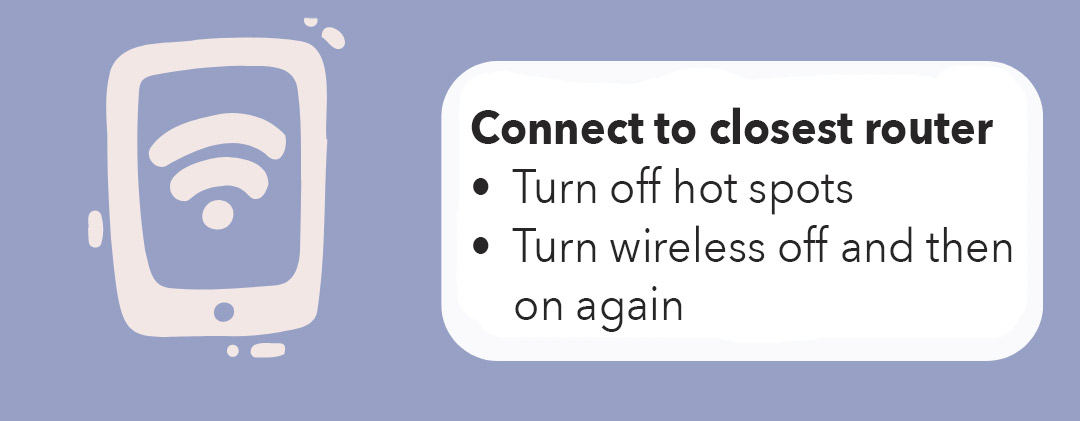
The Campus Wi-Fi network has thousands of “access points.” As you move across campus your device falls out of range and begins looking for a new connection. Here are some tips for better connections:
- Reset at your destination: Turn off/on mobile device Wi-Fi to reconnect to the strongest access point.
- Outside coverage is limited: IT Services provides Wi-Fi in every building but only in limited outdoor areas.
- Forget past networks: Reduce problems by “forgetting” old Wi-Fi networks.
- Turn off your hot spot: Personal hotspots use the same frequencies as campus Wi-Fi and can create interference for users.
Configure Your System
Select your operating system or product.






Help us improve UCSD wireless
Learn more about how to improve wireless in your area.
Need help?
Visit the ITS Service Desk Support Portal.
- Email: servicedesk@ucsd.edu
- Phone: (858) 246-4357 or ext. 6-HELP
- Walk up:
- Applied Physics & Mathematics (AP&M) building, Room 1313 (Google Maps | Apple Maps | UCSD Map) weekdays, 8 a.m. – 4:30 p.m.
- Tech Hub @ the Hive, TPC/S, Third floor (map) / Weekdays, 8 a.m. – noon, 1 – 4:30 p.m.